← Return to Archive
Notes From the Severed Floor /
08
Document No.
TOOL-08
Filed
May 29, 2026
Author
Kane Dabir
Department
Tools
Read Time
8 min read
Classification
DECLASSIFIED
Notes /
08
Tools

Free Family Tree Builder Online | Export and Print in 5 Minutes
Building a family tree online used to mean choosing between expensive genealogy subscriptions, desktop software from 2009, or wrestling a Google Slides template into something vaguely resembling a tree. Most free family tree builders look like a school project. The few that actually look good charge you to export.
The Family Architect is different. It's a free, browser-based family tree builder with four distinct visual themes — from Victorian scientific illustration to dark editorial modern. You add family members, connect them by relationship, and export a high-resolution PNG in under five minutes. No account. No watermark. No subscription.
It handles the things other free tools miss: occupations, education, birth and death years, spouse pairs, multi-generational chains, sibling links, and now color-coded family branches. The layout algorithm positions everyone automatically — you just input the data. The result is something you'd actually want to print and frame.
What you get
Unlimited members — Add anyone with name, birth year, death year, gender, role, occupation, and education fields.
Spouse, parent-child, and sibling connections — Accurate multi-generational layout, automatically arranged by the tool.
Branch colors — Color-code cards by family line. Paternal side in one color, maternal in another. A live legend appears on the canvas automatically.
Four visual themes — The Perpetuity Wing (Victorian), The Macrodata Dossier (Blueprint), Kier's Codex (Gold), and The Severed Archive (Dark). Switch anytime.
Export PNG — 1920px wide, full resolution. Downloads directly to your device.
No account required — Enter your email once to unlock the tool. Your tree auto-saves every time you make a change.
How to use Family Architect
This guide will walk you through every step. Think of it like a recipe — follow it in order and you'll have a beautiful family tree in about five minutes.
Step 1 — Enter your email
When you scroll to the tool above, you'll see a dark box that says Personnel Registration. Type your email address in the box and press Proceed to the Tool.
Your email is only used to save your tree. Every time you come back to this page and type your email again, your tree will reload exactly where you left off. No password. No sign-up form. Just your email.

Step 2 — Fill in your family members quickly
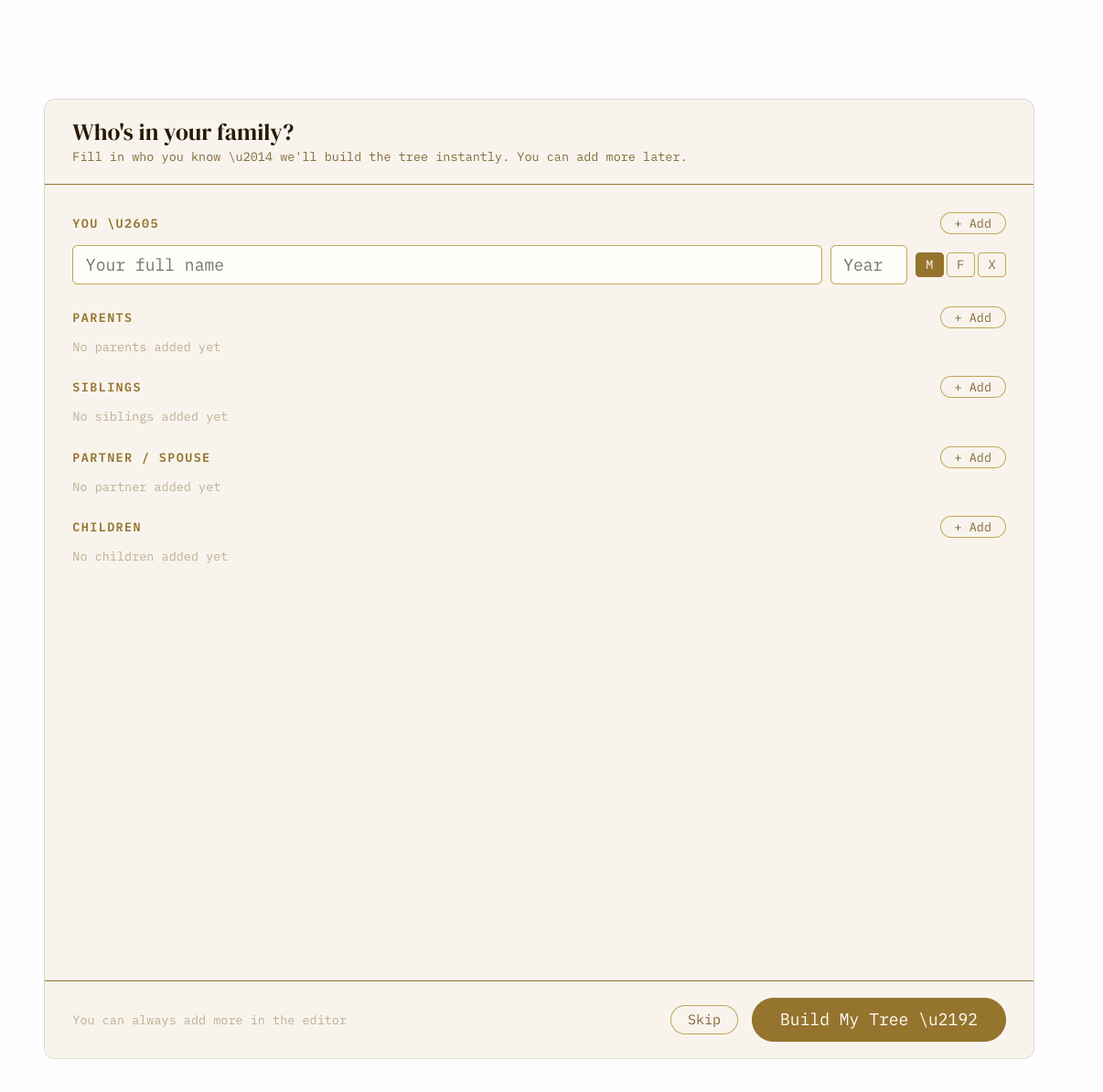
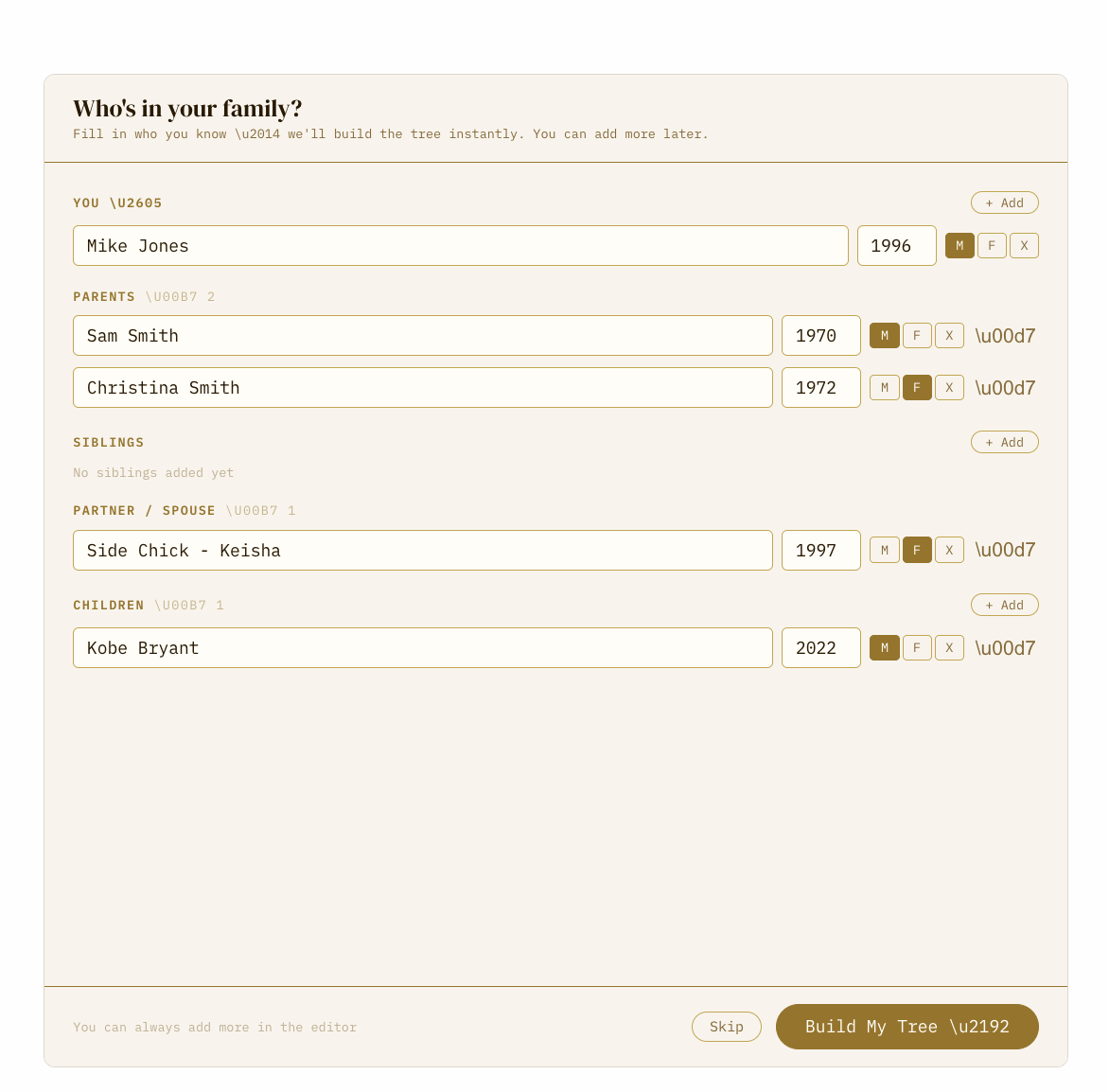
After you enter your email, a screen will pop up that says Who's in your family? This is the QuickStart form. It's the fastest way to get your tree started.
You'll see sections for:
⭐ You — Type your full name and your birth year. Pick M, F, or X for gender.
👨👩 Parents — Click + Add to add up to 2 parents. Type their name and birth year.
👦👧 Siblings — Click + Add to add brothers and sisters.
💍 Partner / Spouse — Click + Add to add one partner or spouse.
👶 Children — Click + Add to add your kids.
When you're done, click the big button that says Build My Tree →
Don't worry if you don't know everything — you can add more people later. Click Skip if you want to start with a blank canvas instead.
Step 3 — See your tree
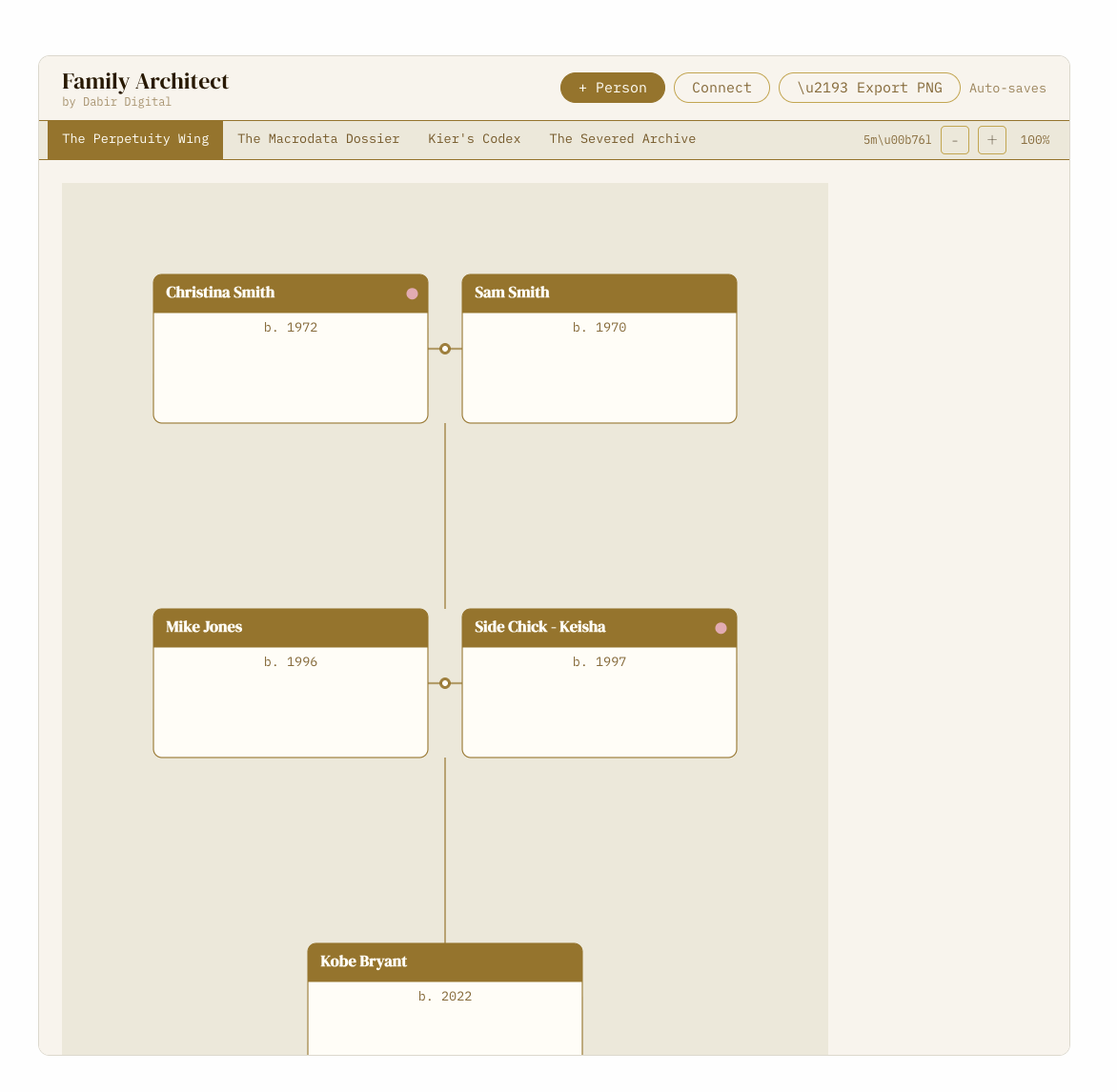
The tool will build your tree automatically. Everyone will be placed on the canvas in the right position — parents above, children below, spouses side by side.
You'll see colored cards for each person. The card header shows their name. Below it shows their birth year (and death year if you added one).
The cards are connected by lines:
— A horizontal line with a diamond in the middle means two people are married or partnered.
— A curved or angled line going down means a parent-to-child connection.
— A dashed bracket above two cards means two people are siblings.
Step 4 — Add more people
You can keep adding as many people as you want. Here's how:
Click the + Person button in the top-right corner of the tool. A form will open with these fields:
• First Name (required) — just their first name
• Last Name — their last name
• Birth Year — the year they were born, like 1965
• Death Year — only fill this in if the person has passed away
• Gender — Male, Female, or Other
• Family Branch Color — pick a color to show which side of the family they're from (see Step 6 below)
• Role / Note — something like "Patriarch" or "The funny one"
• Occupation — their job, like "Teacher" or "Engineer"
• Education — like "University of Kabul" or "High School"
• Phone and Email — optional contact details
When you're done filling in their info, click Add to Tree. The new person will appear on the canvas.

Step 5 — Connect people together
Adding a person to the tree doesn't automatically connect them. You have to tell the tool how people are related. Here's how to add a connection:
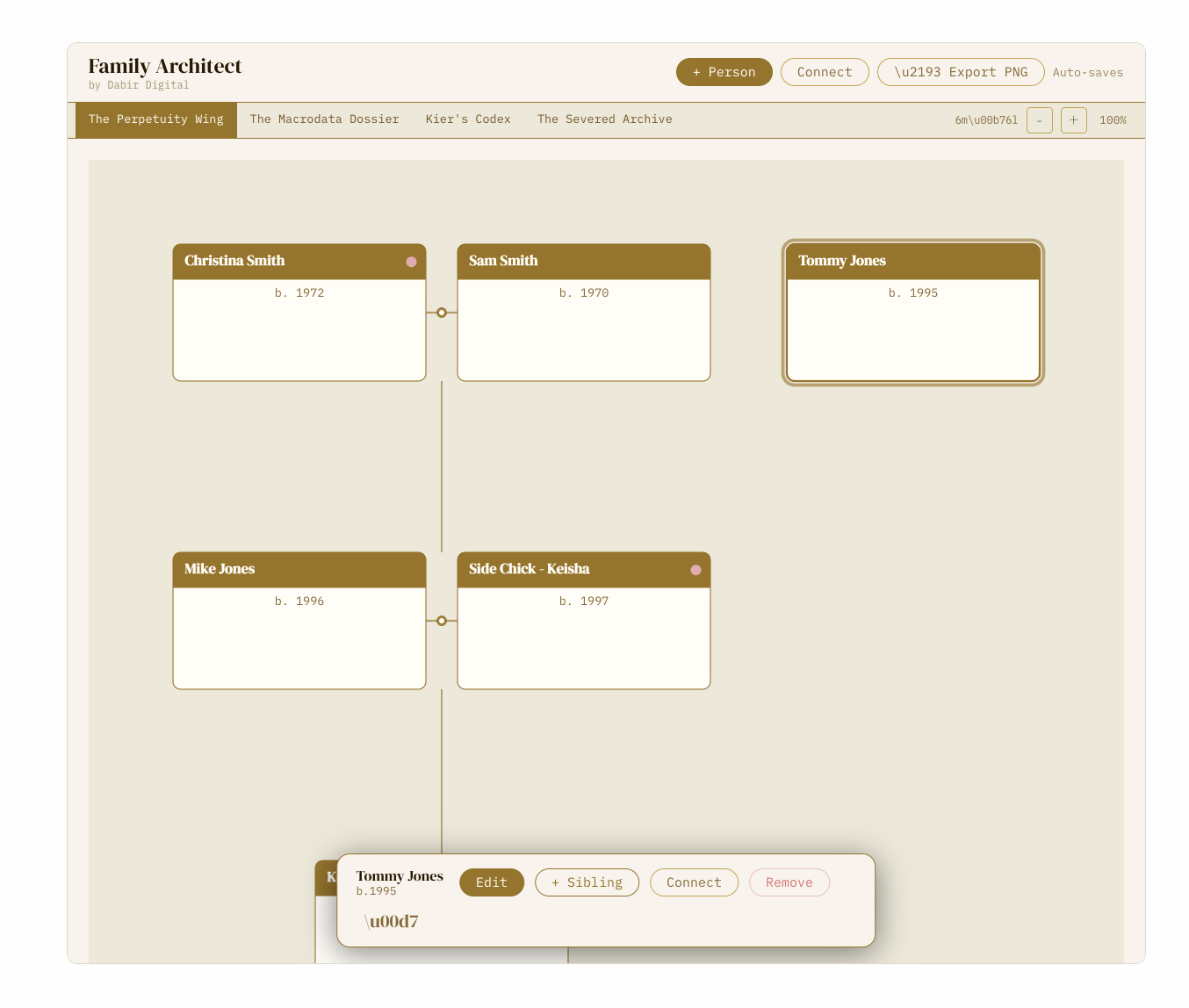
Click the Connect button at the top of the tool. A small form will open with three fields:
Relationship type — pick one of these three:
• Spouse / Partner — for two people who are married or in a relationship. They'll appear side by side with a line connecting them.
• Parent → Child — for a parent and their child. The parent goes above, the child goes below.
• Sibling — for brothers and sisters. A dashed bracket appears above their cards.
Then choose the two people from the dropdown menus and click Add Connection.
💡 Pro tip: Add spouse connections first, then parent-to-child connections. The tree will lay out more cleanly.
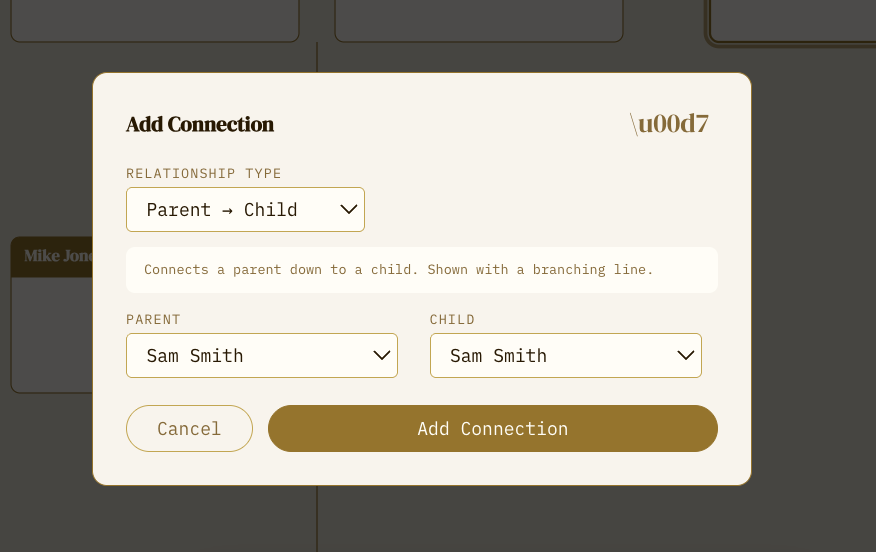
You can also quickly add a sibling by clicking on a card in the tree and then pressing the + Sibling button that appears at the bottom of the screen.
Step 6 — Color-code your family branches
This is one of the most powerful features. You can give each family line its own color so anyone looking at the tree can tell at a glance which side everyone comes from.
To add a branch color to someone:
1. Click their card in the tree to select them
2. Click the Edit button that appears at the bottom
3. Find the Family Branch Color section
4. Click one of the colored squares to pick a color
Each color has a built-in label: Paternal, Maternal, Partner, In-Law, Sibling Line, Extended, Adopted, and Other.
Once you assign colors, a small Branch Key legend will automatically appear in the top corner of the canvas, showing which color represents which family line.

Step 7 — Edit or remove someone
Made a mistake? No problem. Click on any card in the tree. A bar will appear at the bottom of the screen with four buttons:
• Edit — change any of their details
• + Sibling — add a new sibling directly connected to them
• Connect — add a new relationship starting from this person
• Remove — delete them from the tree (this also removes all their connections)
Click the × button or anywhere outside the bar to deselect the person.
Step 8 — Switch themes
The tree comes with four completely different visual styles. You can switch between them at any time by clicking the tabs just below the top bar:
🏛️ The Perpetuity Wing — Warm cream and gold tones. Looks like a Victorian scientific record. Great for printing and framing.
🔵 The Macrodata Dossier — Dark navy blue with blueprint-style lines. Has a technical, archival feel.
✨ Kier's Codex — Deep black with gold accents. Luxurious and dramatic. Best for a bold printed display.
🌑 The Severed Archive — Dark glass effect with soft blue glow. Sleek and modern.
Switching themes doesn't change any of your data — it only changes how the tree looks. Your tree auto-saves the theme you were last using.
Step 9 — Zoom in and out
If your tree has a lot of people, it can get big. Use the − and + buttons in the top right corner of the tool to zoom out or in. The percentage next to the buttons shows your current zoom level (100% is full size).
You can also scroll around the canvas in any direction to see different parts of your tree.
Step 10 — Export your tree as a PNG
When your tree looks exactly how you want it, you can download it as a high-quality image.
Click the ↓ Export PNG button at the top of the tool. A small box will pop up explaining what you're about to download. Click Download PNG.
Your tree will be saved as a 1920 pixels wide PNG file — that's high enough quality to print large and still look sharp. The file will download directly to your device.
💡 Export tip: If custom fonts don't appear correctly in the PNG, the tool will automatically try to save it as an SVG file instead. An SVG can be opened in any browser or photo editor and printed at any size without losing quality.

Your tree saves automatically
You don't have to click Save. Every time you add a person, make a connection, or change a theme, the tool quietly saves your tree in the background. You'll see a small message that says Saving… and then Saved ✓.
The next time you come back to this page, just type the same email address you used before. Your tree will reload exactly where you left left.
Tips for a great family tree
✅ Start with what you know. You don't need every detail to get started. Even just names and birth years makes a great tree.
✅ Add spouses before children. The layout looks cleaner when you connect married couples first, then add their kids.
✅ Use branch colors early. Assign a color to the very first person you add from each family side. It's much easier than going back and editing everyone later.
✅ Add occupations and notes. These tiny details make the tree feel alive. "Physician," "Came to Canada in 1975," "The one who makes the best rice" — all of it counts.
✅ Use the Victorian theme for printing. The Perpetuity Wing theme on a cream background looks stunning as a wall print.
✅ Export often. Save a PNG every time you add a new generation. That way you always have a backup.
Common questions
Do I need to create an account?
No. You just need an email address to unlock the tool. Your email is the key that loads your saved tree.
Is my tree private?
Yes. Your tree is stored privately and is only accessible when you type your email on this page.
Can I add more than one family tree?
Each email address is tied to one tree. To start a separate tree, use a different email address.
What if I spelled someone's name wrong?
Click on their card, press Edit, and fix it. Changes save automatically.
Can I use this on my phone?
Yes. The tool works on mobile browsers. A larger screen makes it easier to build, but the tool is fully usable on a phone.
What does the gender dot mean?
The small dot in the top-right corner of each card shows gender. It's a quick visual cue — pale pink for Female, and a white or light dot for Male.
Next in Archive
.svg)